Last Updated: 15th June, 2026 | 03:19:14 PM
Google Workspace for Education Tutorials
Ultimate Guide & Tutorials: Mastering Google Workspace for Education

The landscape of learning has changed drastically over the last few years. Whether you are navigating traditional brick-and-mortar classrooms or studying via Open and Distance Learning (ODL) institutions like the National Open University of Nigeria (NOUN), digital literacy is no longer optional—it is a necessity.
At the forefront of this digital education revolution is Google Workspace for Education (formerly known as G Suite for Education). This powerful ecosystem of cloud-based tools is designed to facilitate collaboration, streamline assignment submissions, and connect students with educators seamlessly.
In this comprehensive guide, we will break down the essential Google Workspace tools, provide step-by-step tutorials on how to use them, and show you how integrating these tools can make your academic journey smoother.
(Note: To access these tools, you will need a Google account. If you are a new student setting up your digital profile, you can learn
What is Google Workspace for Education?
Google Workspace for Education is a suite of productivity and collaboration tools tailored specifically for schools, universities, and independent learners. It includes familiar applications like Google Drive, Docs, Sheets, Slides, Gmail, Google Meet, and Google Classroom.
AI-powered lesson plan generators
Because these tools are cloud-based, your work is saved automatically and can be accessed from any device—be it a smartphone, tablet, or laptop. This flexibility is incredibly vital for distance learning students who rely on platforms like the
1. Google Classroom: Your Digital Lecture Hall
Google Classroom is the hub where teachers can create classes, distribute assignments, and communicate with students. Many facilitators use it as a supplementary platform alongside the school’s main portal.
Tutorial: How to Use Google Classroom
Joining a Class: 1. Download the Google Classroom app or visit
classroom.google.com. 2. Sign in with your school-provided Google account or personal Gmail. 3. Click the "+" icon at the top right of the screen and select Join Class. 4. Enter the unique Class Code provided by your lecturer or facilitator.Submitting Assignments: 1. Click on the "Classwork" tab to see pending tasks. 2. Select the assignment, then click View Assignment. 3. Under "Your Work" on the right side, click + Add or create to upload a file (like a PDF or Word document) or create a new Google Doc right there. 4. Once attached, make sure you hit the Turn In button!
Pro-Tip: If your institution conducts classes independently, navigating these digital spaces is very similar to how you would approach
2. Google Drive: Your Virtual Backpack
Flash drives get lost, and hard drives crash. Google Drive is a cloud storage solution that gives you ample space to store your study materials, textbooks, past questions, and project drafts safely online.
Tutorial: Organizing Your Google Drive
Creating Folders for Courses: 1. Open Google Drive. 2. Click the + New button on the top left and select Folder. 3. Name the folder after your course code (e.g., GST 101 or CIT 202). 4. Inside that folder, create sub-folders for "Lecture Notes," "Assignments," and "Past Questions."
Uploading Course Materials: 1. Simply drag and drop files from your computer directly into the Drive window, or click + New > File upload.
Staying organized in Google Drive makes it much easier to prepare for continuous assessments. If you are preparing for your NOUN tests, having your materials sorted in Drive will save you time before you navigate over to figure out
3. Google Docs, Sheets, and Slides: The Productivity Trio
Say goodbye to losing unsaved work. Docs (word processing), Sheets (spreadsheets), and Slides (presentations) save your work automatically as you type.
Tutorial: Collaborating on Group Projects
One of the best features of Google Workspace is real-time collaboration. If you have a group presentation or a joint research paper:
Open your Google Doc or Slide.
Click the blue Share button in the top right corner.
Enter the email addresses of your group members.
Set their permissions to Editor so they can type and make changes.
You can all work on the document at the exact same time! You will see their cursors moving in real-time.
Are you a final-year student working on a heavy research project? Using Google Docs is an absolute lifesaver for drafting your chapters and sharing them with your supervisor for quick feedback. If you're looking for inspiration for your final year work, browse through these
4. Google Meet: Seamless Virtual Facilitation
While traditional schools have physical classrooms, modern education relies heavily on virtual meetings. Google Meet is integrated directly into Workspace and provides high-quality video conferencing.
Best AI tools for Teachers / Students
Tutorial: Joining and Participating in a Google Meet
Joining: Your facilitator will likely send a meeting link via email, WhatsApp, or post it in Google Classroom. Simply click the link, ensure your camera and microphone permissions are granted, and click Join Now.
Best Practices for Virtual Lectures:
Mute your microphone when you are not speaking to avoid background noise.
Use the "Raise Hand" feature if you want to ask a question without interrupting the lecturer.
Use the Chat box to drop questions or attendance details if requested by the facilitator.
Understanding how to use tools like Google Meet and Zoom is vital if you are participating in
Tips for Maximizing Google Workspace as a Student
Enable Offline Access: Internet connectivity in Nigeria can sometimes be unstable. You can set Google Docs, Sheets, and Drive to work offline. Go to your Google Drive settings (the gear icon) and check the box for Offline mode. This allows you to read materials and type assignments even when your data is turned off; it will sync automatically once you reconnect.
Use Google Calendar to Track Deadlines: Never miss a TMA submission or an exam date. When a teacher assigns a due date in Google Classroom, it automatically populates in your Google Calendar. You can also manually add your exam timetable so you get reminders on your phone.
Master Keyboard Shortcuts: Save time by learning shortcuts like
Ctrl + K(to insert a link),Ctrl + Shift + C(word count in Docs), andCtrl + Z(undo).
Conclusion
Mastering Google Workspace for Education is one of the smartest investments you can make in your academic career. By effectively utilizing Classroom for assignments, Drive for file organization, Docs for collaborative projects, and Meet for lectures, you position yourself to study smarter, not harder.
As distance learning and technology-driven education continue to expand in Nigeria, staying tech-savvy will ensure you maintain excellent grades with minimal stress.
For more guides on navigating your student portals, course materials, and academic updates, keep exploring
Scholarships
for International Students
Related Posts

Financial Literacy for High Schoolers...
15th June, 2026
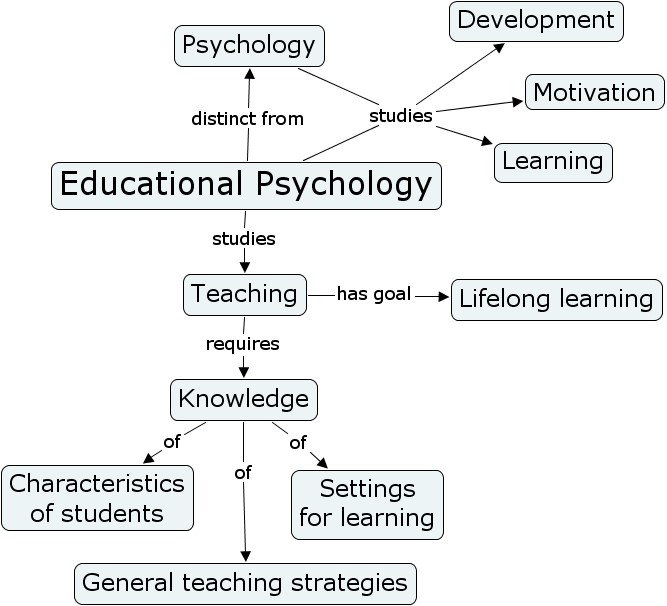
Educational Psychology Strategies...
15th June, 2026
 examples.png)
Universal Design for Learning (UDL) examples...
15th June, 2026
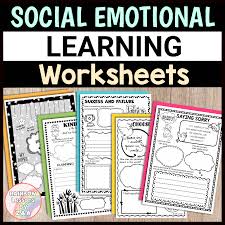
Social Emotional Learning (SEL) Activities...
15th June, 2026

Sensory Activities for Toddlers...
15th June, 2026

Educational Podcasts for Kids...
15th June, 2026

Books for Early Readers...
15th June, 2026

Play-based Learning Ideas at Home...
15th June, 2026
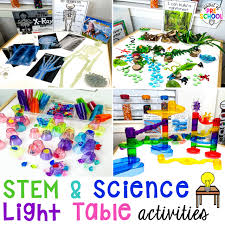
STEM Activities for Preschoolers...
15th June, 2026
Best Digital Planners for College Students...
15th June, 2026
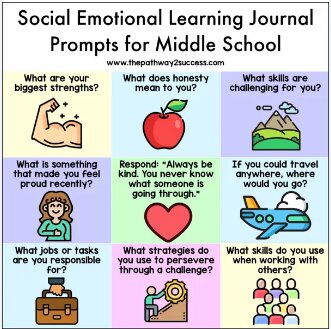
Writing Prompts for Middle School...
15th June, 2026
Study Tips for High School Students...
15th June, 2026
Categories
Blog Posts






Breaking News
We usually sends BREAKING News to students of National Open University, NOUN. Not to miss any of our latest updates, enter your email here