Last Updated: 18th June, 2026 | 08:33:19 PM
How to Accept Admission on JAMB CAPS
How to Accept Admission on JAMB CAPS: The Ultimate Step-by-Step Guide

Securing an admission offer from your choice university, polytechnic, or college of education is an incredible milestone. However, passing the Post-UTME and seeing your name on the school's merit list is only half the battle. To make the admission official, you must formally accept it on the JAMB Central Admissions Processing System (CAPS).
If you fail to accept the offer within the window provided by JAMB (usually 2 to 4 weeks), the system assumes you have rejected it.
How
to Check JAMB Result via SMS
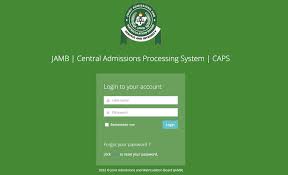
JAMB CAPS Portal Login
🛠️ Method 1: How to Accept Admission via the Portal (Smartphone or PC)
Using the JAMB E-facility portal is the most transparent way to manage your choice. It allows you to see your exact status, double-check your credentials, and see if you have any pending transfer approvals.
📲 Method 2: How to Accept Admission via SMS
If you lack access to a strong internet connection or a computer center, JAMB provides an alternative shortcut using text messaging from your registered phone number.
Step 1: Open your phone's default text messaging app.
Step 2: Compose a new message matching this exact format:
ACCEPT [Space] Your JAMB Registration Number.Example:
ACCEPT 202610234567AB
Step 3: Send the SMS to either 55019 or 66019.
Step 4: Wait for a confirmation text indicating that your choice has been saved successfully in the database.
💡 Navigating Different CAPS Admission Status Responses
When you click on the Admission Status tab, you will encounter one of these three primary scenarios:
| Status Message | What It Means | Action Required |
| "Not Admitted" | The institution has not recommended you yet or your credentials are still under review. | Ensure your O'Level result is correctly uploaded to JAMB. |
| "Admission in Progress (AIP)" | The school has short-listed you, and JAMB is currently vetting your eligibility criteria. | Sit tight; your official acceptance buttons will appear within a few days. |
| "Transfer Approval" | The institution wants to admit you, but under a different course than the one you originally applied for. | Navigate to the "Course Transfer" tab on the sidebar first, click accept, and then return to the main tab to accept the final admission. |
🚀 Post-Acceptance: Printing Your Admission Letter
Once the buttons gray out and show "Accepted," your data locks into the national system. Your next critical task is to print your official JAMB Admission Letter.
This document is mandatory for your physical institutional screening when you arrive on campus. For clear breakdowns on how to manage institutional clearances, check out the resources over at
To pay the processing token, log back into the main E-facility page, click on "Admission Letter Printing", process the transaction fee through Remita, and print copies for your administrative file.
For a visual walkthrough detailing how to log in, switch your mobile layout, and verify that your buttons processed correctly, check out this practical
JAMB
Registration Template / Portal
Related Posts
JAMB CAPS Portal Login...
18th June, 2026
How to Check JAMB Result via SMS...
18th June, 2026

How To Check Jamb Exam Center...
18th June, 2026
JAMB Exam Date and Center...
18th June, 2026
JAMB Portal Login...
18th June, 2026

JAMB CBT Practice Online...
18th June, 2026
JAMB Mock Result Portal...
18th June, 2026

Jamb Novel 2024...
18th June, 2026
Jamb Past Questions and Answers...
18th June, 2026
JAMB Registration Template / Portal...
18th June, 2026

NIN to JAMB...
18th June, 2026
JAMB CAPS to Check Status, ACCEPT / REJECT Admission...
27th June, 2025
Categories
Blog Posts






Breaking News
We usually sends BREAKING News to students of National Open University, NOUN. Not to miss any of our latest updates, enter your email here